The University of Nottingham offers a Microsoft Exchange email account which I
accessed through Thunderbird. Recently, university IT set a new archival policy
that moves any message older than 90 days into an online
archive [1].
This online archive
is Microsoft
Exchange's In-Place Archive, sometimes also known
as Online
Archive, and hereafter referred to as In-Place/Online Archive
.
The problem is that the In-Place/Online Archive was not accessible through
Thunderbird, only through the Outlook web interface or the official Outlook
application (only available on Windows/Mac).
Even worse, the In-Place/Online Archive is not exportable so that I could not
even get offline copies of any emails older than 90 days.
Update: Following help from IT support, it turns out that the
archive is exportable, but only in the classic version of the
Desktop application.
Fortunately, using the DavMail gateway I could get access to the In-Place/Online Archive in Thunderbird. The full setup is described below.
[1] https://uniofnottm.sharepoint.com/sites/DTS/SitePages/Email.aspx#view-emails-or-calendar-entries-that-are-older-than-90-days (requires sign-in)
Install DavMail. I used the Flatpak to get version 6.5.1.
Following this
comment on a DavMail GitHub issue, update the configuration file
davmail.properties with the following lines.
(For the Flatpak this file is in ~/.var/app/org.davmail.DavMail/config/.)
davmail.oauth.clientId=d3590ed6-52b3-4102-aeff-aad2292ab01c
davmail.oauth.redirectUri=urn:ietf:wg:oauth:2.0:oob
davmail.mode=O365Manual
-- Replace by your company's Tenant ID
davmail.oauth.tenantId=67bda7ee-fd80-41ef-ac91-358418290a1e
I used this website to find the
Tenant ID (67bda7ee-fd80-41ef-ac91-358418290a1e)
for nottingham.ac.uk.
Now start DavMail.
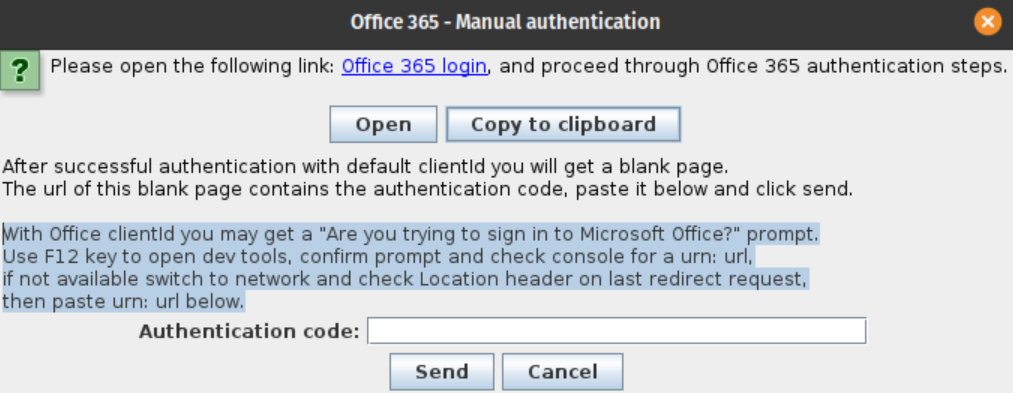
To add your account to Thunderbird, follow the instructions on the DavMail website. In short: add a new account with your email address and password, configure the server settings manually (incoming: IMAP, localhost:1143; outgoing: localhost:1025; both normal password and your email address as username), and follow the authentication instructions.
To get access to Microsoft Exchange's In-Place/Online Archive, we
follow this StackOverflow
answer and go to the Server Settings of your account, click
the Advanced button and add /archive next to
the Public (shared) field.
Restart Thunderbird and your In-Place/Online Archive will now appear under a
new /archive folder.
Unfortunately, DavMail does not support IMAP (un)subscribe yet, so that you must sync all folders, but other than that everything works great.